Docs › Links
Link expiration & password protection
Make a link expire on a date, or require a password before it forwards.
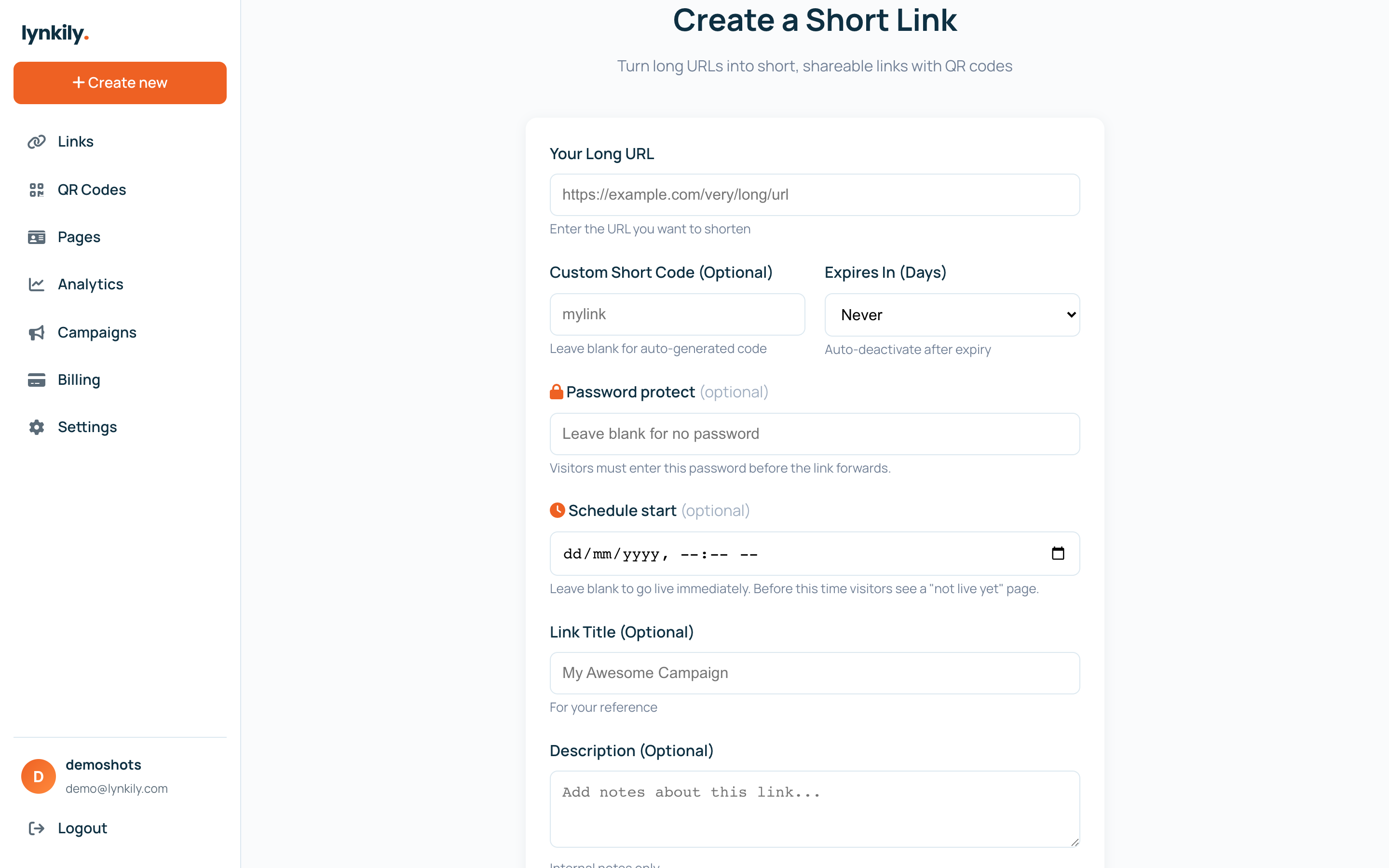
Control who can open a link and for how long. Set an expiration date to auto-disable a link, and/or add a password so only people with the secret can reach the destination.
Step by step
- When creating a link, set “Expires In” (or, when editing, pick an exact expiration date).
- To protect it, type a password in the “Password protect” field.
- Share the link. After the expiry date it shows an “expired” page instead of forwarding.
- If a password is set, visitors must enter it before they’re forwarded (they’re remembered for the session).
- Edit the link any time to change the password, remove it, or clear the expiry.
Pro tips
- Combine a password and an expiry for a link that’s both private and time-limited.
- Passwords are per-link — great for client deliverables or gated content.