Docs › Links
Scheduled links
Auto-activate a link (or a bio button) at a set date and time.
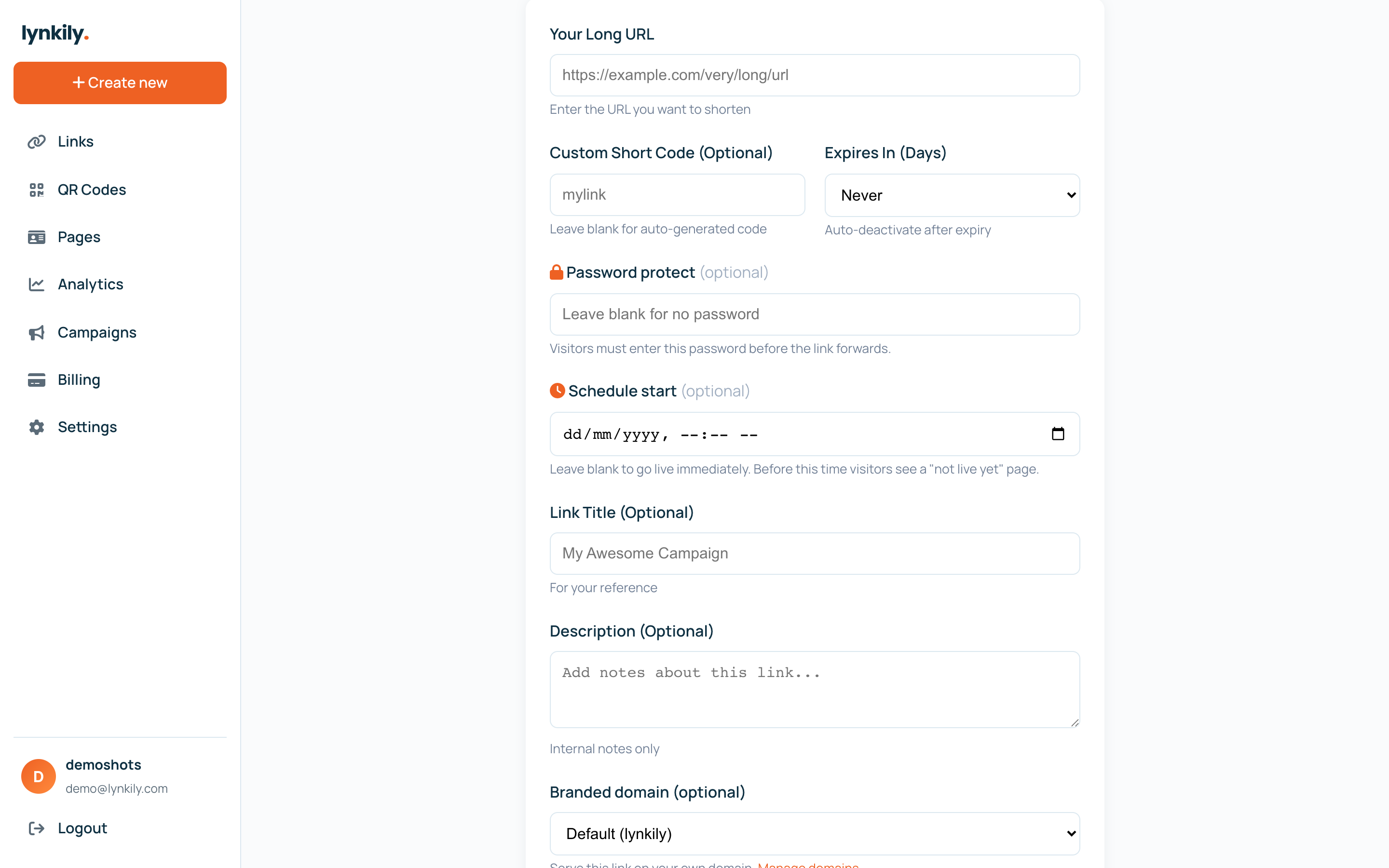
Schedule a link to go live later — ideal for launches, drops and timed campaigns. Before the start time visitors see a friendly “not live yet” page; after it, the link forwards normally.
Step by step
- When creating or editing a link, set “Schedule start” to the date and time it should go live.
- Before that moment, anyone who opens the link sees a “this link isn’t live yet” page with the go-live time.
- At the scheduled time it starts forwarding automatically — no action needed.
- For link-in-bio buttons, open the block in the builder and set “Show from” / “Hide after” to control its window.
Pro tips
- Pair a schedule start with an expiry to run a link only during a campaign window.
- Bio buttons with a schedule only appear on your public page inside their window.